Last updated ·Published ·By the WiserWork team

Clipboard History Manager
Copy something, copy something else, and the first thing is gone. This keeps a searchable list of what you copied so you can bring any of it back — stored on your own computer, and never sent anywhere.
This one is not on the Chrome Web Store yet — it is being packaged now. The extensions page lists the ones you can install today, and this page will link straight to the listing as soon as it is approved.
What it does
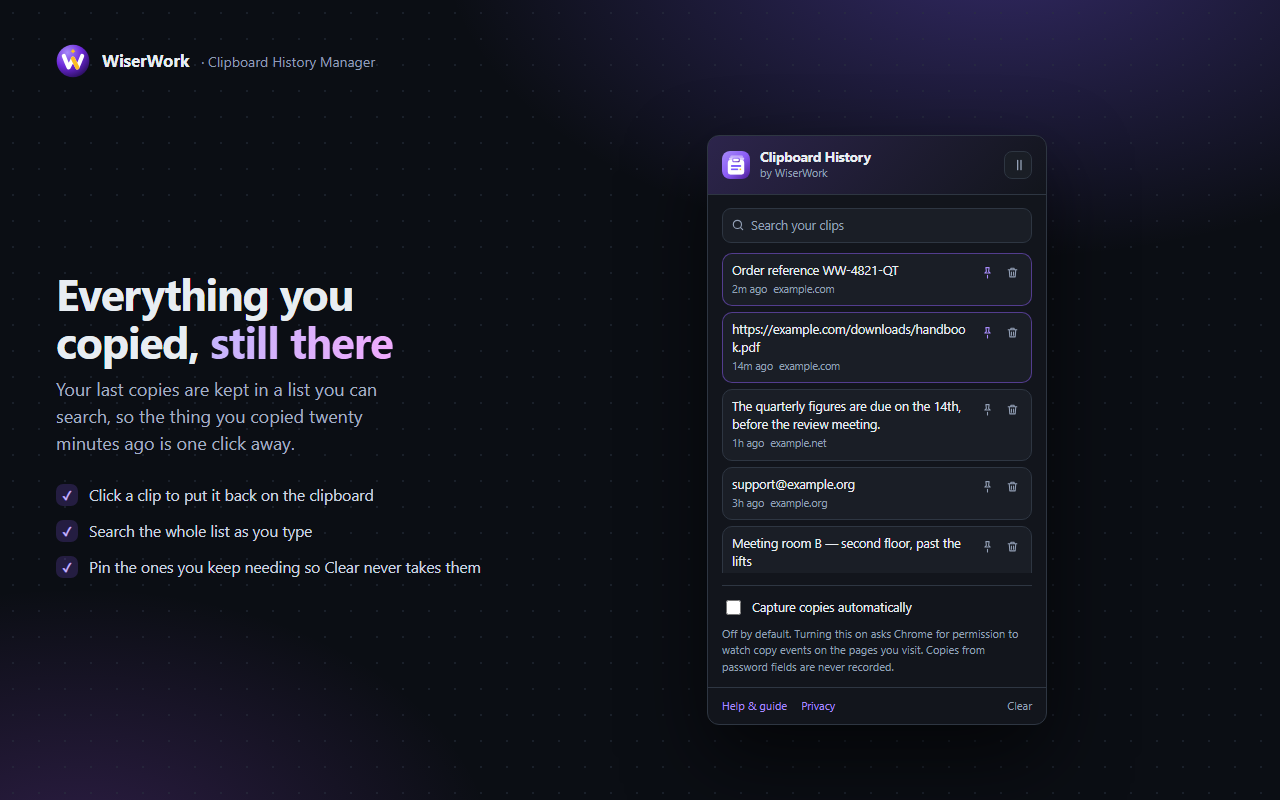
The clipboard holds exactly one thing. Copy an address, copy a name, and the address has gone; go back for it and you are hunting through tabs for the page it came from. A clipboard history fixes that by remembering what went through, so the thing you copied twenty minutes ago is still one click away.
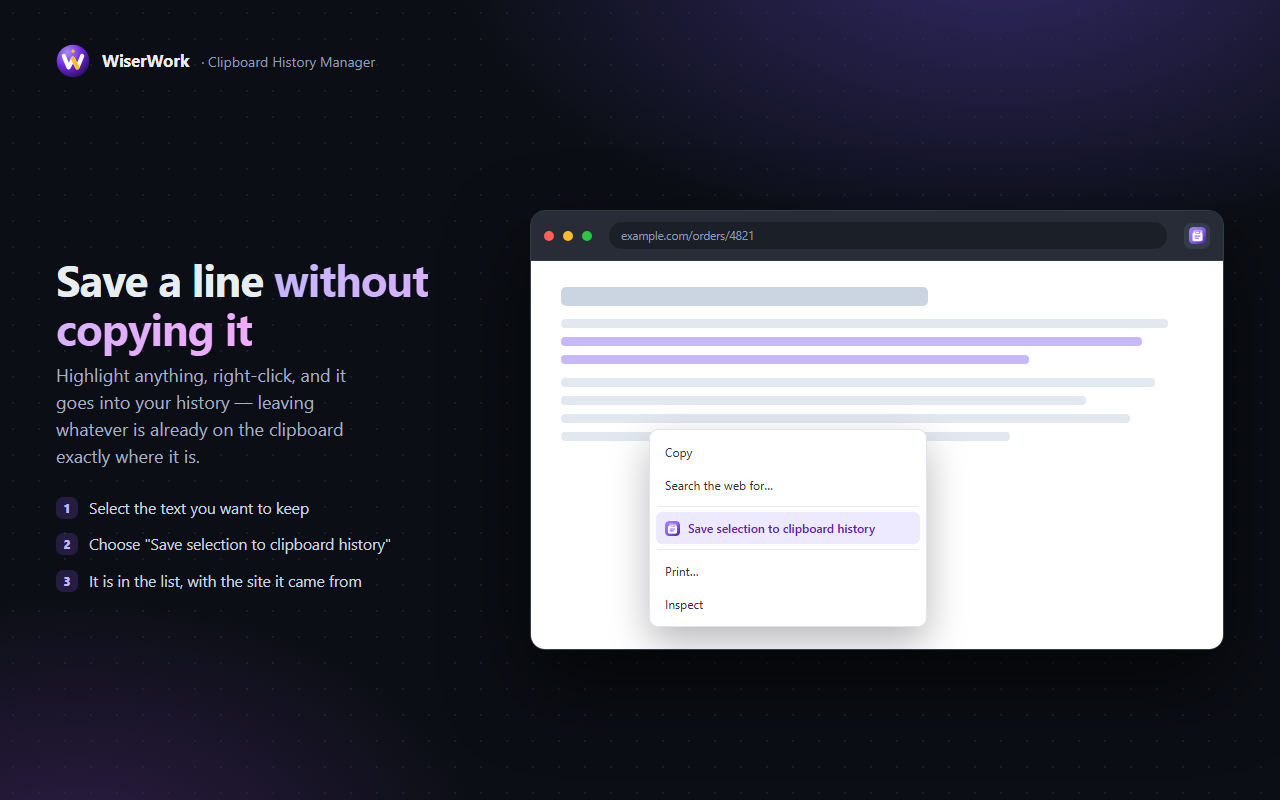
This one is deliberately quiet about it. Automatic capture is switched off when you install it, and the broad page permission that capture would need is optional rather than required — Chrome never grants it at install time. Out of the box the extension works entirely from a right-click entry, Save selection to clipboard history, using only activeTab. If you later decide you want everything captured automatically, the switch in the popup asks for that permission then, and you can take it back whenever you like. Either way the history lives in chrome.storage.local on your own computer: the extension contains no network calls at all, so there is nowhere for a clip to be sent.
Features
Nothing is lost
Every clip you save is kept in a list you can scroll back through, so an address from an hour ago is still there.
Search the history
Type a few words and the list narrows to the clips that contain them. Faster than finding the page it came from.
Pin what you reuse
Pinned clips stay at the top and survive Clear, so a signature, an address or a reference number is always to hand.
Paste it back in one click
Click a clip and it goes straight onto the clipboard, ready for the next Ctrl+V wherever you are working.
Capture is off until you ask
Automatic capture starts disabled and its page permission is optional. Until you switch it on, only what you send from the right-click menu is stored.
Password fields are ignored
A copy made from a password field is never recorded, whatever the capture setting says.
How to use it
- Select some text and right-click it, then choose Save selection to clipboard history. This works the moment you install the extension, with no extra permission to grant.
- Open the popup from the toolbar, or press Alt + Shift + H, to see everything you have saved.
- Click a clip to copy it back. It goes onto the clipboard ready to paste wherever you are working.
- Pin the ones you keep reusing. Pinned clips move to the top and are left alone when you press Clear.
- Turn on automatic capture only if you want it. The switch in the popup asks Chrome for permission to watch copy events on pages; decline it and everything else carries on working exactly as before.
What the extension can access
This is the complete list, including the optional one that is off until you choose to grant it:
| Permission | Why it is needed |
|---|---|
contextMenus |
Adds Save selection to clipboard history to the right-click menu. This is how the extension works before you grant anything else. |
activeTab |
Lets it read the text you selected, on the tab you are on, at the moment you choose that menu item. It gives no standing access to your browsing. |
scripting |
Runs the small piece of code that reads your selection — and, only if you switch automatic capture on, the listener that notices a copy. |
storage |
Keeps your clips and settings in chrome.storage.local on your own computer. That is the only place the history exists. |
Optional host permission: <all_urls> |
Declared as an optional host permission rather than a required one, so Chrome does not grant it when you install and the extension does not use it. It is requested only when you turn automatic capture on, so that a copy can be noticed on the pages you visit, and you can withdraw it at any time by switching capture off or removing the permission in Chrome's settings. |
Privacy in one line: everything stays in
chrome.storage.local on your own computer, the extension
contains no network calls of any kind, and automatic capture is off until
you switch it on. Read the detail in the
extensions section of our privacy policy.
Things worth knowing
- Automatic capture is off when you install. Until you turn it on, the only things stored are the selections you send from the right-click menu.
- Copies made in a password field are never recorded, and without the optional permission the extension cannot see page copy events at all.
- The history is kept on this computer, in this browser profile. It does not sync to your other devices and nothing is uploaded.
- Clear removes the unpinned clips. Pinned ones stay until you unpin them or delete them individually.
- Chrome does not allow extensions to run on its own pages, so nothing copied on
chrome://pages or in the Chrome Web Store is captured. - A clipboard history is a convenience, not a vault. Anything genuinely secret — a password, a recovery code — belongs in a password manager instead.
Frequently Asked Questions
Is Clipboard History Manager free?
Yes, completely. Every feature works from the first click, with no paid tier, no trial and no account.
Does anything I copy leave my computer?
No. Clips are written to chrome.storage.local in your own browser profile. The extension contains no network calls at all, so there is nowhere for anything to be sent.
Does it start recording everything as soon as I install it?
No. Automatic capture is off by default, and the page permission it would need is declared as optional rather than required, so Chrome does not grant it at install time. Until you turn the switch on, the extension only stores the selections you send it from the right-click menu.
Are passwords saved to the history?
No. A copy made from a password field is never recorded, whatever the capture setting is.
What happens to pinned clips when I press Clear?
They stay. Clear removes the unpinned clips only, which is what makes pinning useful for a signature, an address or anything else you paste over and over.
Does the history sync between my computers?
No. It is deliberately kept in local storage on the device you are using, so it never travels through a sync service or a server.
Related tools on WiserWork
Working with text you have copied? These run in the browser with nothing to install:
- Text Case Converter — fix the capitalisation of something you pasted in.
- Text Diff Checker — compare two clips and see exactly what changed.
- Word Counter — check the length of a passage before you reuse it.
- Text Replacer — swap a word or a pattern through a long block of text.
- Link to QR Code — another of our free Chrome extensions, for sending a copied link to your phone.