Last updated ·Published ·By the WiserWork team

Full Webpage Screenshot
One click captures the whole page — top to bottom, past the fold, however long it is — and hands you a single PNG or JPG. A free Chrome extension from WiserWork.
What it does
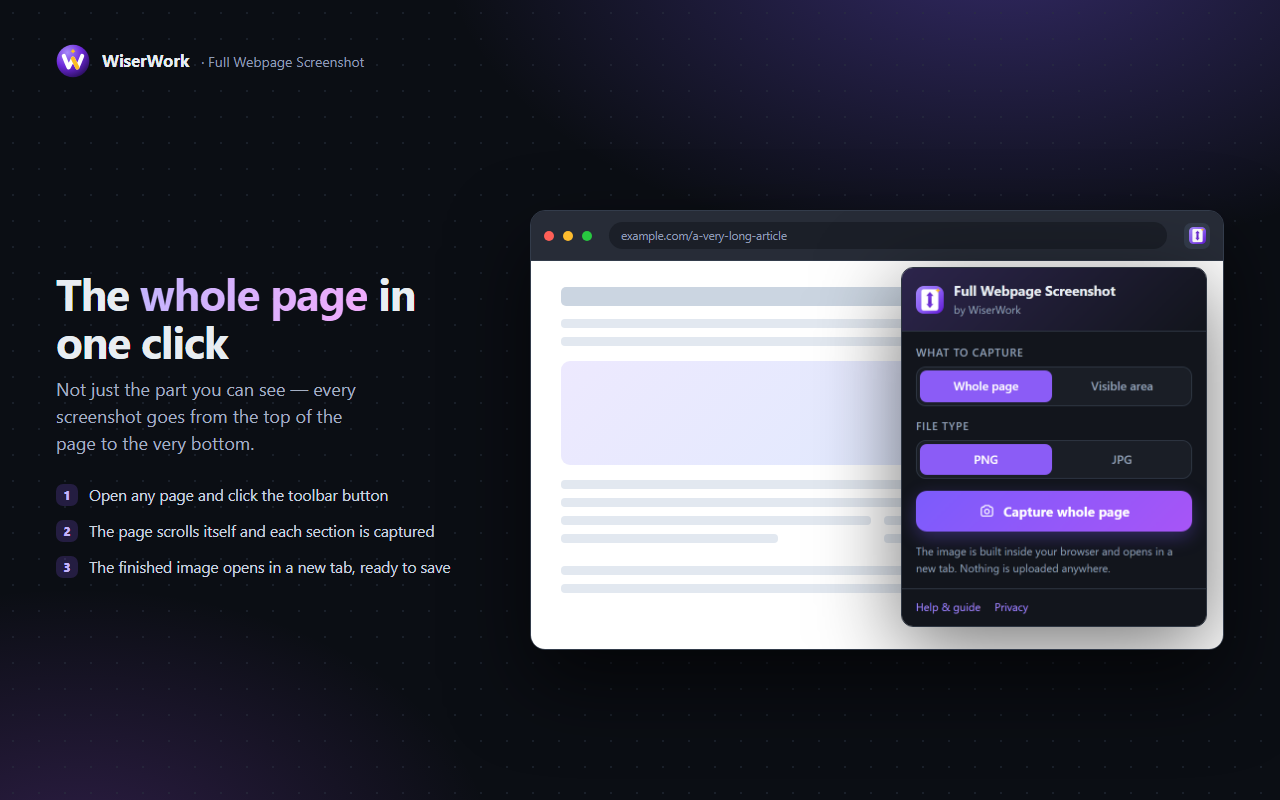
A normal screenshot stops at the bottom of your monitor. That is fine for a login box, and useless for a long article, a dashboard, a checkout page or a terms-of-service page you need to keep a record of. Full Webpage Screenshot takes the other kind: it walks down the page a screen at a time, captures each section, and joins them back into one tall image.
The whole job happens inside your browser. The sections are stitched onto a canvas in a new tab, where you can look at the result before saving it. The extension has no server, makes no network requests and has nothing to sign in to, so a page from your company intranet or your bank statement never leaves your computer.
Features
Whole page, or just the fold
Capture the full scrolling height, or only what is on screen right now, from the same popup. App-style pages that scroll inside a panel rather than scrolling the window are captured in full too.
PNG or JPG
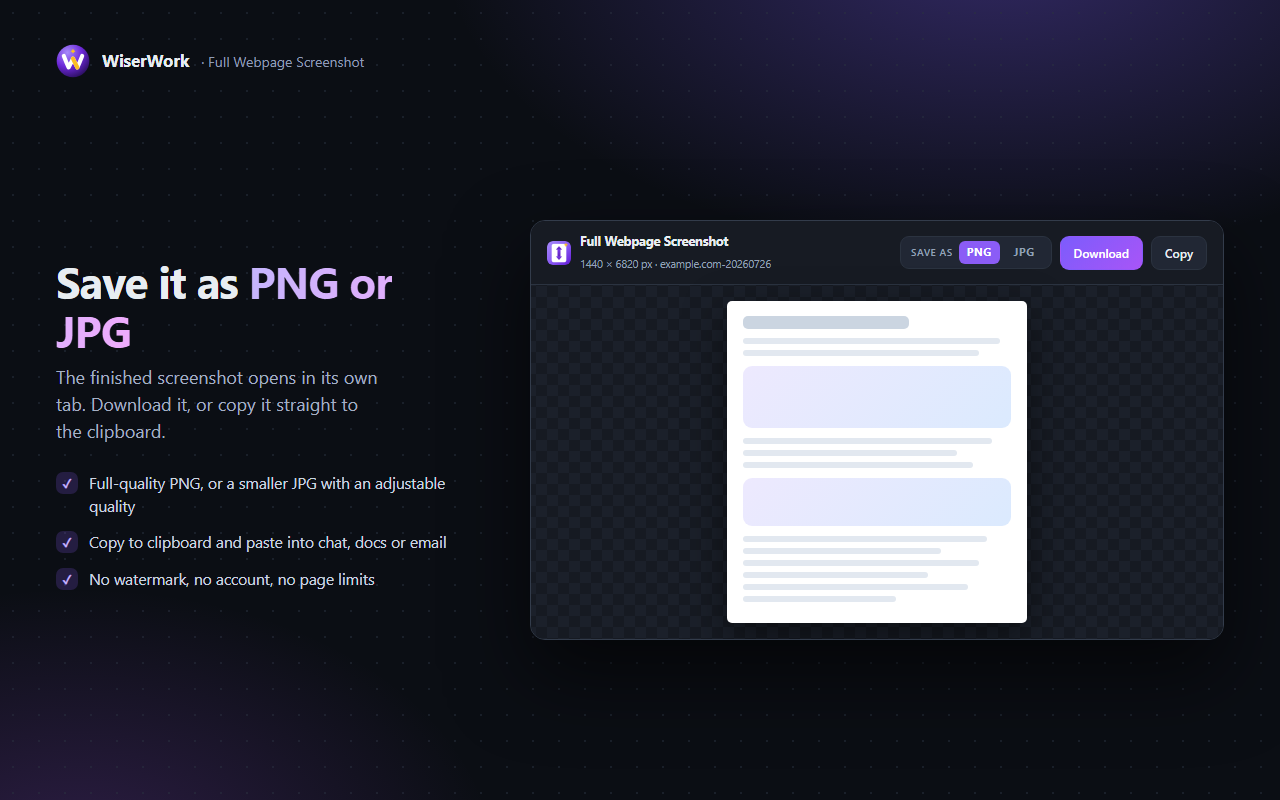
Lossless PNG for text and screenshots of interfaces, or a smaller JPG with an adjustable quality slider.
Copy to clipboard
Paste the screenshot straight into a chat, a document or an email without saving a file first.
Sticky bars handled
Floating headers, chat bubbles and cookie bars are hidden after the first section so they do not repeat all the way down.
Wide pages too
If a page scrolls sideways as well as down, it is captured as a grid and joined the same way.
Keyboard shortcut
Alt + Shift + S opens it on the page you are reading. Change the shortcut any time in Chrome's settings.
How to use it
- Open the page you want to keep. Scroll it once to the bottom if it loads images lazily, so everything is ready to be captured.
- Click the extension button in the toolbar, or press Alt + Shift + S. Pin the extension first if it is hidden behind Chrome's puzzle-piece icon.
- Choose whole page or visible area, then PNG or JPG. Your choice is remembered for next time.
- Press capture. The page scrolls itself while each section is taken — leave it alone for a couple of seconds.
- Save the result. The finished image opens in a new tab: press Download for a file, or Copy to put it on the clipboard.
What the extension can access
Chrome shows a permission prompt when you install anything, and it is worth understanding what you are agreeing to. This is the complete list, and why each one is needed:
| Permission | Why it is needed |
|---|---|
activeTab |
Lets the extension read the page you are on only after you click its button. It is what makes the capture possible, and it expires when you leave the tab. There is no standing access to your browsing. |
scripting |
Used to measure the page height and to scroll it while each section is captured, then to put the scroll position back exactly where it was. |
storage |
Remembers your two preferences — whole page or visible area, PNG or JPG — on your own computer. Nothing else is stored. |
| No host permissions | The extension does not request access to any website in advance, so it cannot read pages in the background. |
Privacy in one line: the extension collects nothing, sends nothing and stores nothing except your two preferences. Read the detail in the extensions section of our privacy policy.
Things worth knowing
- Chrome does not allow extensions to run on its own pages, so
chrome://settings, the new tab page and the Chrome Web Store cannot be captured. The extension tells you instead of failing silently. - Pages that load content as you scroll may still be filling in while they are captured. Scrolling to the bottom once first gives the most complete image.
- Extremely long pages can exceed the largest image a browser can hold. Those are scaled down to fit, and the viewer tells you the scale that was used.
- Chrome limits how often a tab may be captured, so a very long page takes a few seconds. This is normal and the progress bar keeps you posted.
Frequently Asked Questions
Is Full Webpage Screenshot free?
Yes, completely. There is no paid tier, no trial, no watermark and no account to create.
Are my screenshots uploaded anywhere?
No. Each section is captured by the browser and stitched together on a canvas inside your own tab. The extension makes no network requests at all, so the image only exists on your computer.
Why can it not capture some pages?
Chrome blocks extensions on its own pages, including chrome:// settings, the new tab page, the extensions page and the Chrome Web Store. Open a normal website and the capture works.
What happens to sticky headers and cookie banners?
Elements that are fixed or sticky are hidden after the first section so they do not repeat down the finished image. They appear once, at the top, exactly as you see them.
Can it capture extremely long pages?
Yes, far beyond what a normal screenshot manages. There are two ceilings and the viewer tells you when either is reached: a capture covers up to 80 screens of scrolling, and an image larger than a browser canvas can hold is scaled down to fit.
Is there a keyboard shortcut?
Yes, Alt+Shift+S opens the extension on the current page. You can change it at chrome://extensions/shortcuts.
Related tools on WiserWork
Once you have the image, the browser-based tools handle the rest — no install required:
- Image Compressor — shrink a large screenshot before emailing it.
- Image Resizer — set an exact width or height.
- JPG to PDF — turn a page capture into a PDF to archive or share.
- Compress JPG and Compress PNG — squeeze the file size further.
- Thumbnail Downloader for YouTube and Volume Master for Each Tab — two more of our free Chrome extensions.