Last updated ·Published ·By the WiserWork team

Volume Master for Each Tab
Chrome gives you mute and nothing else. This gives every tab its own slider — from silence to a 600% boost — so the quiet lecture is audible and the loud tab finally shuts up.
What it does
Some audio is simply too quiet: a phone recording of a meeting, an old lecture upload, a video call replay, a documentary with whispered narration. Turning your speakers up fixes it until the next notification arrives at full blast. Volume Master works the other way round — it changes the volume of one tab, leaving everything else where it was.
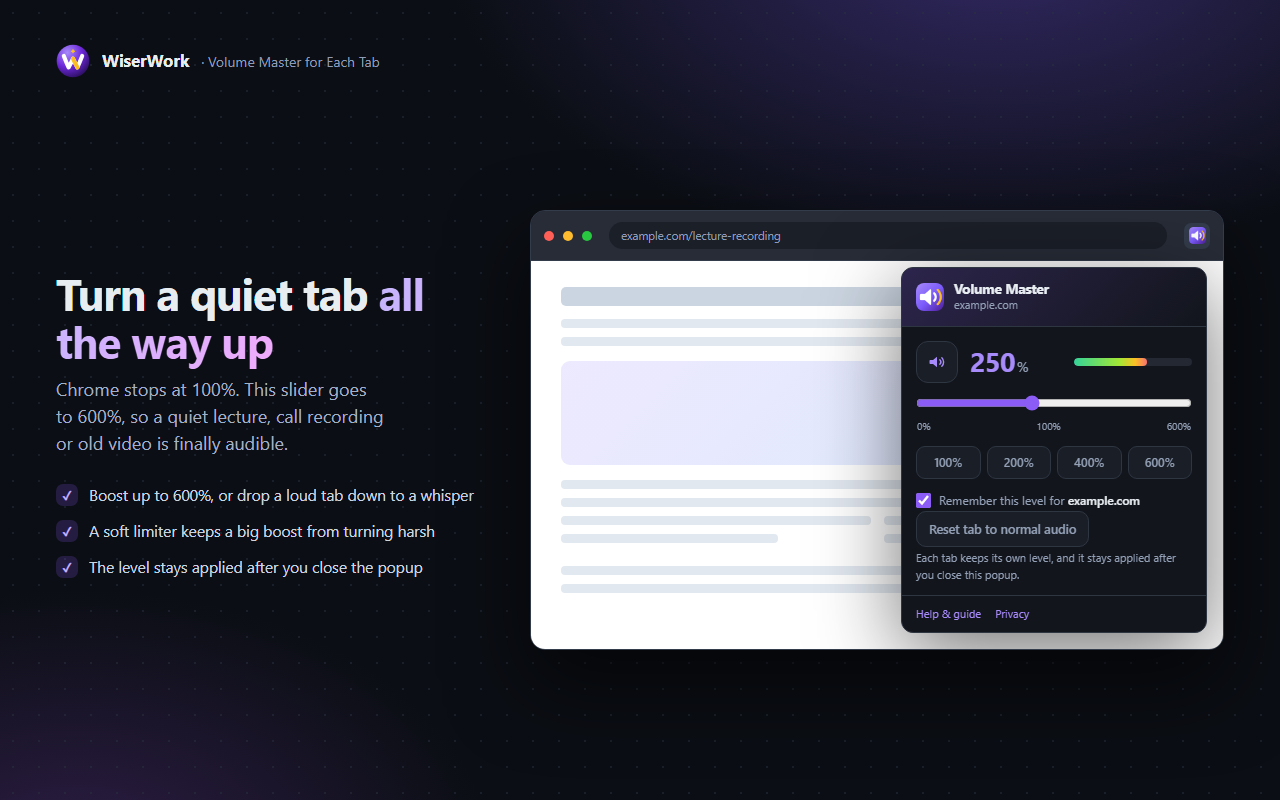
The slider runs from complete silence to 600%. Below 100% it works like a per-tab fader; above it, the tab's audio is amplified with a soft limiter in the chain, which catches the peaks so a big boost stays listenable instead of crackling. Set it once and the tab keeps that level while you carry on working elsewhere.
Features
Boost to 600%
Six times louder than the browser normally allows, for recordings that were mastered far too quietly.
A level per tab
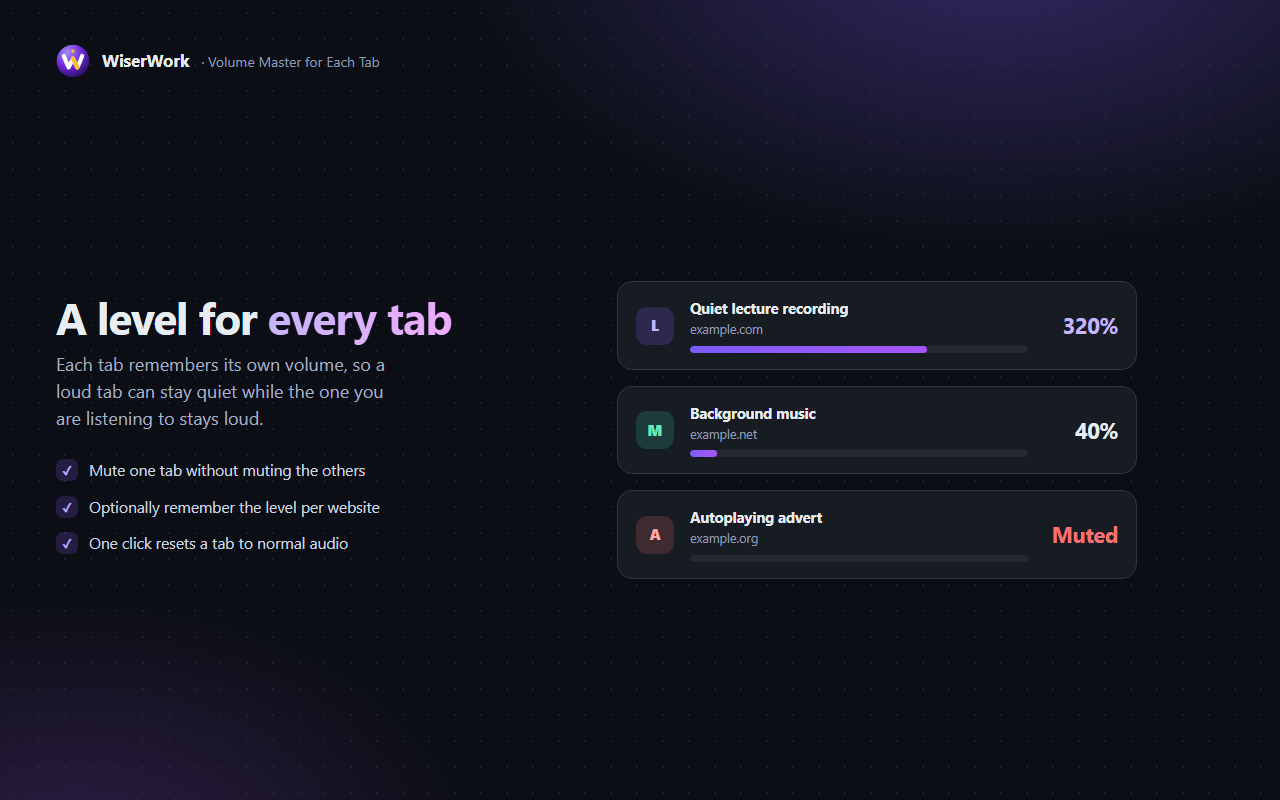
Each tab remembers its own setting, so a quiet video and a loud one can both play at a comfortable volume.
Soft limiter built in
A transparent limiter sits after the volume control, so peaks are caught rather than clipped into harshness.
One-click mute
Silence a single tab and bring it back at exactly the level it had before.
Remembers a site
Optionally save the level for a website, so the same site opens at the volume you like next time.
Live level meter
A small meter in the popup shows what is actually reaching your speakers, so you can see when a boost is too much.
How to use it
- Open the tab that is playing sound and start the audio or video.
- Click the extension button in the toolbar, or press Alt + Shift + V. Pin the extension if it is hidden behind Chrome's puzzle-piece icon.
- Drag the slider, or tap one of the 100 / 200 / 400 / 600% presets. The change is applied as you move it.
- Watch the meter — if it is pinned to the right end, the boost is higher than the recording can take. Ease it back until it moves.
- Close the popup. The tab keeps that volume. Press Reset tab to normal audio when you are finished with it.
What the extension can access
Audio control needs a small set of permissions. This is all of them, and what each one is for:
| Permission | Why it is needed |
|---|---|
activeTab |
Identifies the tab you are looking at when you click the button, so the level is applied to the right one. It gives no standing access to your browsing. |
tabCapture |
The only way Chrome allows a tab's audio to be re-routed. The stream is passed through a volume control and played straight back out — it is never recorded or stored. |
offscreen |
Manifest V3 extensions have no page of their own to play audio in, so a hidden document is created to hold the audio processing. It closes as soon as no tab is being controlled. |
storage |
Saves your per-site volume levels and the "remember this site" switch on your own computer. |
| No host permissions | The extension does not ask for access to any website in advance, and it cannot read page content at all. |
Privacy in one line: audio passes through, it is never recorded, stored or transmitted, and the only thing saved is the volume number you chose. Read the detail in the extensions section of our privacy policy.
Things worth knowing
- Chrome does not allow extensions to run on its own pages, so
chrome://settings, the new tab page and the Chrome Web Store cannot be controlled. - Reloading a tab returns it to normal audio. Open the popup again and your saved level is reapplied.
- Boosting cannot add detail that was never recorded — it makes hiss and distortion louder too. The lowest setting that does the job always sounds best.
- A small number of sites use protected media that the browser will not hand over. Those tabs keep playing normally at 100%.
- Nothing happens until you actually move the slider, and pressing reset releases the tab's audio completely.
Frequently Asked Questions
Is Volume Master for Each Tab free?
Yes, completely. Every feature works from the first click, with no paid tier, no trial and no account.
Does the extension record or listen to my audio?
No. The tab's sound is passed through a volume control and played straight back out. Nothing is saved to disk, nothing is analysed and nothing is sent to a server.
Why does a very high boost sound distorted?
Boosting amplifies whatever is already there, including background hiss and any distortion baked into the recording. A soft limiter keeps the peaks under control, but a 600% boost on an already loud source will never sound clean. Raise it only as far as you need.
Does the volume stay set when I close the popup?
Yes. The level stays applied to that tab until you reset it or the tab is closed. Reloading the page returns the tab to normal audio, and reopening the popup applies your saved level again.
Can it control every website?
It works on ordinary websites. Chrome does not let extensions touch its own pages such as chrome:// settings or the Chrome Web Store, and a small number of sites that use protected media may refuse to hand over their audio.
Does it change the volume of my whole computer?
No. It only changes the tab you set, so other tabs and other programs keep playing at their own level.
Related tools on WiserWork
Working with sound and video? These run in the browser with nothing to install:
- Audio Trimmer — cut a clip down to the part you need.
- Audio Toolbox — convert and adjust audio files.
- Video Trimmer — trim a video without re-encoding the whole file.
- SRT to VTT Converter — fix subtitle formats for the web.
- Text to Speech Reader and Full Webpage Screenshot — two more of our free Chrome extensions.