Last updated ·Published ·By the WiserWork team

Text to Speech Reader
Select a paragraph, right-click, and Chrome reads it to you. Pick the voice you like and set the speed, pitch and volume to match how you actually want to be read to.
What it does
Reading on screen is tiring, and some things are simply easier to take in through your ears: a long report while you tidy your desk, a dense paragraph you have re-read three times, an article in a language you can understand better than you can decode. This extension turns any selected text into speech with two clicks, and gets out of the way.
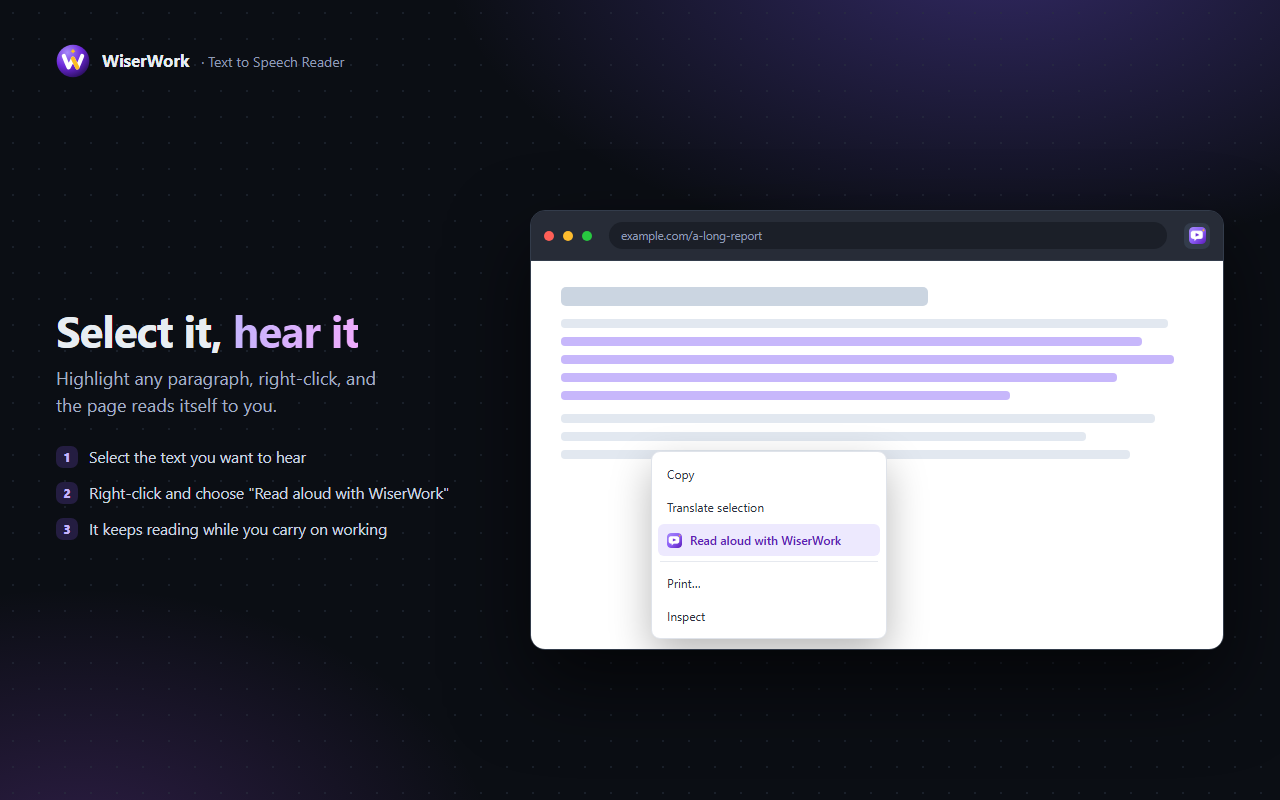
There is no dialog to fill in and no window to keep open. Highlight the part you want, choose Read aloud from the right-click menu, and the reading starts. Close the popup, switch tabs, keep typing — it carries on to the end of the selection, and the toolbar icon shows a small badge while it is talking.
Features
Right-click to read
Works on any ordinary web page. Select the text, open the menu, and it reads exactly what you highlighted — nothing more.
The natural voices, found for you
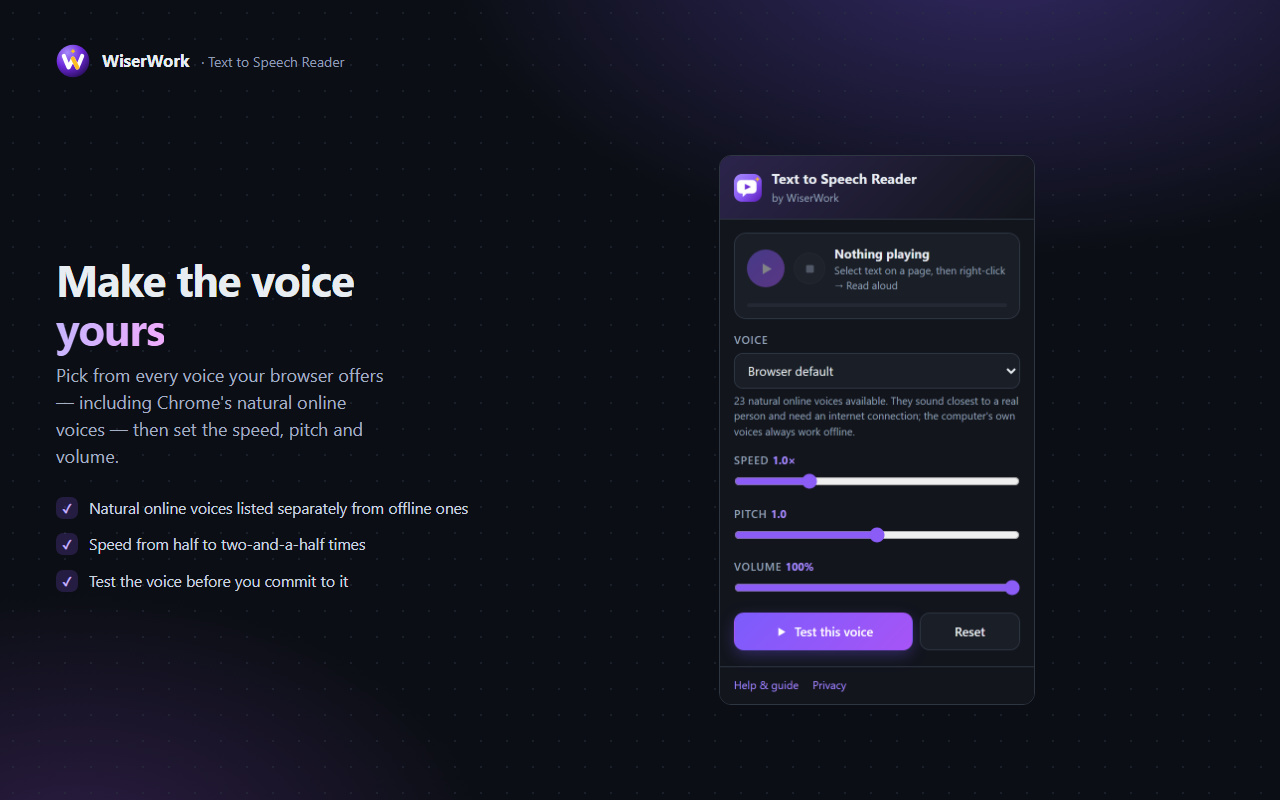
It starts on a natural British English voice instead of the flat one your system would pick. Chrome's neural online voices are grouped separately from your computer's offline ones, so switching is easy.
Speed, pitch and volume
Half speed to two-and-a-half times, with pitch and volume to match. Test the result before you commit to it.
Long passages, sentence by sentence
A long selection is queued a sentence at a time, so it starts talking immediately instead of choking on a wall of text.
Pause, resume, stop
Full control from the toolbar button, which shows a badge while it is talking. Right-clicking a new paragraph simply starts reading that one instead.
Any language you have
Voices for every language installed in your browser or system are listed, with the ones matching your browser language first.
How to use it
- Select the text you want to hear — a paragraph, or several. Chrome passes an extension about a thousand characters at a time, so work through a long article in sections.
- Right-click the selection and choose Read aloud. Reading starts straight away.
- Open the toolbar popup (or press Alt + Shift + R) to pause, resume or stop — and to change the voice.
- Pick a voice from the list. The Natural voices (online) group sounds closest to a real person.
- Set the speed and pitch, press Test this voice until it sounds right, and it is remembered for next time.
About the voices
Voices do not come from the extension — they come from your browser and your operating system, and this extension gives you all of them in one list. That matters, because it is what makes the good ones available without shipping a huge speech model or sending your text to a paid service:
- Natural voices (online). Chrome ships neural voices that are generated by Google's speech service. They are the closest thing to a human reader and are the ones most people should pick. They need an internet connection, and the text you selected is sent to that service by Chrome to generate the audio — the same thing that happens on any website that uses them.
- Voices on this computer. The speech engines installed by Windows, macOS, Linux or ChromeOS. They are more robotic but work with no connection at all, and nothing you select leaves your machine.
- Adding more. Installing an extra language or speech pack in your system settings adds voices to the list. Reopen the popup and they appear.
We deliberately do not bundle a neural voice model with the extension: it would add tens of megabytes to a download that is currently a few kilobytes, and it would still not beat the voices your browser already has.
What the extension can access
This is the complete list of permissions, and what each one is for:
| Permission | Why it is needed |
|---|---|
contextMenus |
Adds the Read aloud entry to the right-click menu. The browser passes it only the text you selected — the extension never sees the rest of the page. |
tts |
Speaks the text through the browser's own speech engine, and lists the available voices so you can choose one. |
storage |
Remembers your voice, speed, pitch and volume on your own device. Nothing else is stored. |
| No host permissions | The extension asks for no access to any website, injects no scripts, and cannot read page content. Selecting text and choosing the menu item is the only way it receives anything. |
Privacy in one line: the extension has no server and collects nothing; it hands your selection to the browser's speech engine and stores only your voice settings. Full detail, including what an online voice means for your text, is in the extensions section of our privacy policy.
Things worth knowing
- Chrome hands an extension only the first part of a selection — about a thousand characters. That is several paragraphs, and the popup says so when a selection was cut short, but it does mean a whole long article has to be read in sections.
- Chrome does not allow extensions to run on its own pages, so text on
chrome://pages and in the Chrome Web Store cannot be read. - Some places do not offer the extension's right-click item — the built-in PDF viewer and a few web apps that replace the browser menu with their own.
- Which voices you have depends on your operating system and browser, so the list on a work laptop may differ from the one at home.
- The online voices need a connection. If you are offline, pick a voice from the group of voices on your computer.
- Speed and pitch behave slightly differently from voice to voice; a rate that sounds right on one may sound rushed on another.
Frequently Asked Questions
Is Text to Speech Reader free?
Yes, completely. There is no paid tier, no trial and no account to create.
How natural do the voices sound?
The extension offers every voice your browser can reach. Chrome's own online voices are neural and sound closest to a real person, and they are listed in a separate group so they are easy to find. The voices installed on your computer are also listed and work without an internet connection.
Is the text I select sent to a server?
The extension has no server and collects nothing. It hands the text you selected to the browser's own speech engine. If you pick one of Chrome's online voices, Chrome sends that text to Google's speech service to generate the audio, exactly as it does for any other extension or web page that uses those voices. Choose a voice from the offline group and the audio is produced entirely on your computer.
Can it read a whole page automatically?
It reads what you select, which keeps its access to a single, deliberate action. Chrome hands an extension only the first part of a selection — roughly a thousand characters — so a long article is read a few paragraphs at a time. The popup tells you when a selection was cut short.
Does it keep reading if I close the popup?
Yes. Reading continues until it finishes or you press stop, and the toolbar icon shows a badge while it is talking.
How do I get more voices?
Voices come from Chrome and from your operating system, so adding a language or a speech pack in your system settings adds voices to the list. Reopen the popup and they appear.
Related tools on WiserWork
Prefer not to install anything? These run straight in the browser:
- Text to Speech — paste text into a page and listen to it, no extension needed.
- Audio Toolbox — record, trim and convert audio in the browser.
- Word Counter — check how long a passage is before you have it read to you.
- Full Webpage Screenshot, Volume Master for Each Tab and Link to QR Code — three more of our free Chrome extensions.